Features
This section provides a detailed overview of the features provided by the Fortitude Language Server.
Diagnostic Highlighting
Provide diagnostics for your Fortran code in real-time.
Dynamic Configuration
The server dynamically refreshes the diagnostics when a configuration file is changed in the
workspace, whether it's a fpm.toml, fortitude.toml, or .fortitude.toml file.
The server relies on the file watching capabilities of the editor to detect changes to these files. If an editor does not support file watching, the server will not be able to detect changes to the configuration file and thus will not refresh the diagnostics.
Code Actions
Code actions are context-sensitive suggestions that can help you fix issues in your code. They are usually triggered by a shortcut or by clicking a light bulb icon in the editor. The Fortitude Language Server provides the following code actions:
- Apply a quick fix for a diagnostic that has a fix available (e.g., removing trailing spaces).
- Apply all quick fixes available in the document.
You can even run these actions on-save. For example, to fix all issues and organize imports on save
in VS Code, add the following to your settings.json:
Fix Safety
Fortitude's automatic fixes are labeled as "safe" and "unsafe". By default, the "Fix all" action will not
apply unsafe fixes. However, unsafe fixes can be applied manually with the "Quick fix" action.
Application of unsafe fixes when using "Fix all" can be enabled by setting unsafe-fixes = true in
your Fortitude configuration file.
See the fix documentation for more details on how fix safety works.
Hover
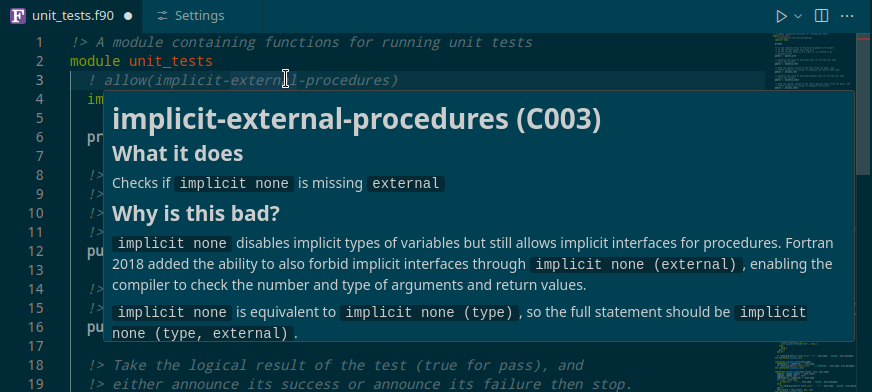
The server can provide the rule documentation when focusing over an allow code in the comment.
Focusing is usually hovering with a mouse, but can also be triggered with a shortcut.